Learn how to use Higgsfield AI for image-to-video creation, with six practical steps, prompt tips, credit checks and a clearly labelled referral link.
Higgsfield AI helps creators make images and videos from prompts and reference assets. This beginner guide walks through a practical image-to-video project: turning a simple product photo into a short cinematic clip. You will learn how to choose a workflow, describe motion, review generation settings and improve the result.
Affiliate disclosure: CoboniKsa may earn a commission if you purchase through links in this guide, at no extra cost to you. Our referral link does not include a coupon code or promise a discount. Explore Higgsfield AI and check the current terms before subscribing.
Updated October 12, 2026. Controls, models, credit costs and plan access can change. The images in this guide are explanatory illustrations, not screenshots of the platform.
What can you create with Higgsfield AI?
The platform includes image generation, video creation, effects and editing workflows. Its video page accepts prompts and reference assets, with options that depend on the selected model. Beginners can start with one still image and a restrained motion instruction rather than a complicated multi-scene production. Product previews, landscape clips and short social visuals are useful practice projects.
Before you start: prepare one clear idea
- Use a sharp image that you own or have permission to use.
- Choose one subject, one movement and one intended output format.
- Leave space around the subject so camera movement has room to work.
- For this tutorial, use an unbranded silver perfume bottle on dark stone, with no people or characters.
Keep the first test small. A clean source image and a simple brief make it easier to understand why a result succeeds or fails.
How to use Higgsfield AI: step by step
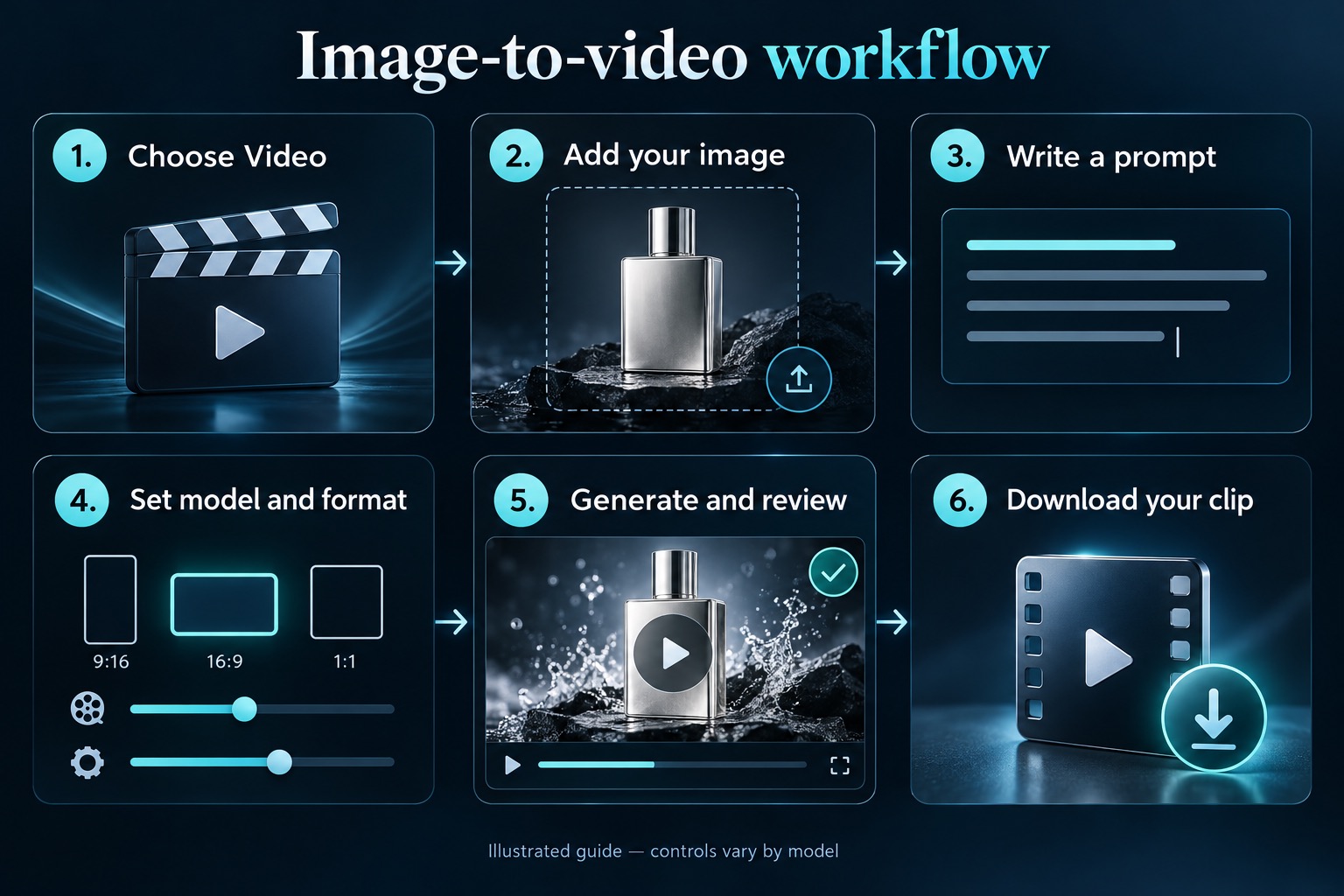
Step 1: Open Higgsfield and choose Video
Open Higgsfield using our referral link, then sign in to your own account or follow the platform’s registration process. Select Video for this walkthrough. Start with the basic creation workflow; tools for editing existing video or transferring motion serve different purposes.
Step 2: Add your product image
Use the reference-image control shown for your selected model. In the editor checked for this guide, the reference button is labelled Add references. Choose your product photo, then confirm the preview shows the correct image. Some workflows expose start or end frames instead; follow the controls visible in your account.
Use a simple background and avoid tiny lettering for the first attempt. If the source contains several products, crop or prepare a clearer source image before uploading it.
Step 3: Write a specific motion prompt
Describe what should stay consistent, how the camera should move and the lighting you want. The following original example deliberately uses objects only:
A silver perfume bottle stands on dark stone. The camera moves slowly forward while soft teal highlights travel across the metal. Preserve the bottle’s shape and position. One continuous shot, subtle motion, realistic studio lighting. No people, no faces, no characters, no added text.
Avoid combining an orbit, a fast zoom, falling objects and a scene change in one beginner prompt. Test one motion first, then change one instruction at a time.
Step 4: Check the model, duration and format
Inspect the model selector and the settings actually available. The live editor checked for this guide displayed duration, ratio and resolution controls. Choose a format suitable for your destination: vertical for a phone-first layout or landscape for a wide player, when supported.
Before generating, read the displayed credit cost and account requirements. Do not assume that every model, resolution or duration is included in your plan. Use the shortest suitable test available before committing to a longer sequence.
Step 5: Generate, then review carefully
When the image, prompt and settings are correct, select Generate. Generation may use credits. Review the finished clip for distorted shapes, unwanted elements, flicker and sudden camera movement. Check the beginning and final frame, not just the thumbnail.
If the bottle changes shape, simplify the motion and emphasise consistent geometry. If the background distracts, use a cleaner source. Save the prompt and settings for the best version so your next test has a clear baseline.
Step 6: Download and finish your clip
Use the output’s download or export option available in your account. Confirm the file plays correctly before using it. Add accurate product names, captions or other final text in your usual editing tool, where you can check spelling and layout. Check the applicable usage rights and plan terms before commercial use.
How to avoid wasting credits
- Decide the intended use before generating: product preview, background loop or social clip.
- Keep a short record of each prompt and the change you tested.
- Compare two controlled variations instead of changing every setting at once.
- Review current billing, credit allowances, renewal and cancellation terms before purchasing a plan.
Higgsfield offers, referral links and coupon codes
Our Higgsfield offer is a link-only affiliate listing. There is no coupon to copy and no discount included with the listing. Any promotion shown by Higgsfield must be checked on its own terms, including eligibility and final price. View Higgsfield and its current plans when you are ready to compare the available options.
Frequently asked questions
Do I need a Higgsfield coupon code?
No code is needed to follow our affiliate link. This listing does not provide a discount.
Can I create videos without people?
You can build your project around objects or landscapes. Use a people-free source image and state the constraint in your prompt, then inspect the output for unwanted additions.
Why does my result differ from the illustration?
The illustration explains the sequence rather than reproducing an interface. Your selected model, settings, source image and generated variation affect the result.
Where can I learn more?
Use the official Higgsfield Academy for further learning. The official video editor and pricing page are the sources for current controls and plan details.
Ready to try the workflow? Start your first Higgsfield AI project with one clear image and one simple camera movement. Browse our English offers for other clearly labelled listings.